

This diagram helps visualize how different components of a computer network work together in real-world scenarios.
Let’s be honest learning technology only from textbooks can feel boring and confusing. “I struggled too, memorizing definitions that didn’t really make sense. Everything changed when I started learning computer networks through real-life usage instead of theory alone.”
When you understand how things actually work like how WhatsApp sends messages or how Wi-Fi delivers a video to your phone the topic suddenly clicks. It becomes easier, more interesting, and much more memorable. That’s exactly how I learned networking, and this article follows the same practical approach. It’s designed to help beginners and students clearly understand the basics of networking for students and how data travels in a network, while also being simple enough to use for exams, lab vivas, and interviews.
Think about this for a second...
When you send a message on WhatsApp or watch a video on Netflix, the data doesn’t magically appear on your screen. It travels from one device to another through cables, wireless signals, routers, and servers.
This entire process is possible because of something called a computer network .
In today’s digital world, computer networks are the foundation of the internet, mobile apps, cloud services, online classes, and work-from-home systems. If you are learning computer science, IT, cloud, or networking for the first time, this topic is your starting point.
📌 Table of Contents
- What Is a Computer Network?
- Why Computer Networks Are Needed
- Components of a Computer Network
- Types of Computer Networks
- How Computer Networks Work
- Network Models (OSI & TCP/IP)
- Real-Life Example
- Advantages & Disadvantages
- FAQs
- Lab Viva & Exam Questions
What Is a Computer Network?
Simple Explanation (Beginner Friendly)
In simple words, a computer network is a connection between two or more devices so they can share data and resources.
The devices can be:
- Computers
- Mobile phones
- Servers
- Printers
- Smart devices
Just like humans talk to each other using language, devices communicate with each other using networks.
Technical Definition (Easy Version)
A computer network is a system that connects multiple devices using communication protocols such as TCP/IP, HTTP, or HTTPS, allowing data to be transmitted securely through wired or wireless media.
Don’t worry if this sounds technical right now — the idea is simple:
👉 Networks help devices send and receive data safely.
Why the Concept of Networking Exists
Computer networks exist to:
- Share information quickly
- Reduce manual work
- Save cost
- Enable communication over long distances
Without networks, every device would work alone, which is not practical in today’s connected world.
Why Computer Networks Are Needed
Computer networks are the backbone of the modern digital world. Almost every online service depends on them.
Let’s understand this with real reasons.
Resource Sharing
Networks allow multiple users to share hardware like:
- Printers
- Scanners
- Storage devices
For example, in an office, one printer can be used by many employees through a network. This reduces cost and saves space.
Data Sharing
Using a computer network, people can share:
- Files
- Applications
- Databases
Instead of copying data using pen drives, files can be sent instantly through the network. This saves time and avoids data duplication.
Communication
Computer networks make communication fast and simple. They support:
- Video conferencing
- Instant messaging
- Web browsing
Every message you send online travels through a network before reaching the receiver.
Data Management
Networks help organizations:
- Store data in one central place
- Secure sensitive information
- Take regular backups
This reduces the risk of data loss and makes information easier to manage.
Remote Access
With computer networks, users can access systems and files from anywhere. For example:
- Employees working from home
- Students attending online classes
- Accessing cloud services remotely
Better Collaboration
Networks improve teamwork by allowing multiple users to work on:
- Shared documents
- Online projects
- Team platforms
This improves productivity and information sharing.
Components of a Computer Network
A computer network is made up of multiple components that work together to send data from one device to another. Each component has a specific role in ensuring smooth and reliable communication between the sender and the receiver.
1. Sender Device
The sender device is the device that initiates or sends data into the network.
Examples:
- Desktop computer
- Laptop
- Smartphone
- Server
One-line example:
Your smartphone sends a WhatsApp message to your friend.
2. Network Interface Card (NIC)
A Network Interface Card (NIC) is a hardware component that connects a device to a computer network, either using a cable or wirelessly.
Don’t let the word “Card” confuse you. You won’t always see a physical card sticking out of your device.
Invisible NIC:
In most modern laptops and smartphones, the NIC is a tiny chip permanently attached to the motherboard.
You cannot see or remove it, but it is always present.
Port-based NIC:
On desktop computers, the NIC is usually the LAN (Ethernet) port where you plug in a network cable.
Wired vs Wireless:
Many devices have two NICs—one for Wi-Fi (wireless) and one for Ethernet (wired).
Each NIC has its own unique identifier called a MAC address.
Examples:
- Ethernet card
- Wi-Fi adapter
One-line example:
Your laptop’s Wi-Fi adapter allows it to connect to a wireless network such as your home or office Wi-Fi.
3. Transmission Medium
The transmission medium is the path through which data travels from sender to receiver.
Types:
- Ethernet cable
- Fiber optic cable
- Wi-Fi (radio waves)
One-line example:
Internet data reaches your home through fiber or Wi-Fi signals.
4. Connectors
Connectors are used to physically connect cables to network devices.
Examples:
- RJ-45 (Ethernet)
- LC / ST (Fiber optics)
One-line example:
An RJ-45 connector plugs the Ethernet cable into your router.
5. Modem
A modem connects your internal network to the Internet Service Provider (ISP) by converting signals.
Examples:
- DSL modem
- Cable modem
One-line example:
Your home modem connects your router to the internet.
6. Router
A router forwards data between different networks and decides the best path for data.
Example:
- Home Wi-Fi router
One-line example:
The router sends internet data from the modem to your phone and laptop.
Difference Between Modem and Router
👉 Scroll horizontally to view the full table
| Feature | Modem | Router |
|---|---|---|
| Basic Role | Connects your network to the Internet | Distributes internet within your network |
| Main Function | Converts ISP signals into digital data | Routes data to correct devices |
| Internet Access | Required to access the internet | Cannot access internet without a modem |
| Works With | Internet Service Provider (ISP) | Modem and local devices |
| IP Address | Gets public IP from ISP | Assigns private IPs to devices |
| Wi-Fi Support | Usually no Wi-Fi | Provides Wi-Fi and wired connections |
| Number of Devices | Usually supports one device | Supports multiple devices |
| Placement | Comes first from ISP line | Comes after the modem |
| Simple Analogy | Main gate to the internet | Traffic manager inside your home |
Many people think a router alone provides internet, but without a modem, the router cannot connect to the ISP.
Note: Many ISPs now provide a single device that acts as both a modem and router. This device is called a Gateway, though the internal functions remain the same.
7. Switch
A switch connects multiple devices within the same local network and sends data to the correct device.
Example:
Office LAN switch
One-line example:
A switch connects all computers in an office network.
8. Hub (Legacy Device)
A hub broadcasts data to all connected devices regardless of destination and is mostly outdated.
Example:
Old Ethernet hub
One-line example:
A hub sends the same data to every connected computer.
Difference Between Hub and Switch
👉 Scroll horizontally to view the full table
| Feature | Hub | Switch |
|---|---|---|
| Data Transmission | Broadcasts data to all ports | Sends data only to the destination |
| Intelligence | Dumb device | Smart device |
| Efficiency | Low | High |
| Security | Low | High |
| Simple Analogy | Shouting in a crowd | Private phone call |
Because switches are faster, more secure, and efficient, they have almost completely replaced hubs.
9. Bridge
A bridge connects and filters traffic between two network segments.
One-line example:
A bridge connects two office LANs into one network.
10. Gateway
A gateway connects different types of networks and translates data formats if needed.
One-line example:
A gateway allows a local network to communicate with external networks.
Note: In home networks, the router often acts as the gateway.
11. Firewall
A firewall protects the network by allowing or blocking data based on security rules.
One-line example:
A firewall blocks unauthorized access to your computer.
12. Access Point (AP)
An access point allows wireless devices to connect to a wired network.
One-line example:
An access point provides Wi-Fi connectivity in a college campus.
13. Repeater
A repeater boosts or regenerates signals to extend network range.
One-line example:
A Wi-Fi repeater improves signal strength in distant rooms.
14. Communication Protocols
Protocols are rules that define how data is formatted, transmitted, and received. They work across all network components.
Examples:
- TCP/IP
- HTTP / HTTPS
One-line example:
HTTP allows your browser to load a website correctly.
15. Receiver Device
The receiver device is the device that receives and processes the data.
Examples:
- Smartphone
- Computer
- Server
- Printer
One-line example:
Your friend’s phone receives the message you sent.
Not all components are required in every computer network. Their usage depends on the size and purpose of the network.
Types of Computer Networks (Based on Geography)

This diagram helps visualize how different components of a computer network work together in real-world scenarios.
Computer networks are classified based on their geographical coverage. As the distance between connected devices increases, the technology, complexity, and cost of the network also increase.
1. PAN (Personal Area Network)
A PAN is the smallest type of computer network. It is designed for a single person and usually works within a range of up to 10 meters.
Key Feature: Used for connecting personal devices.
One-line example:
Connecting your wireless earbuds to your smartphone using Bluetooth.
2. LAN (Local Area Network)
A LAN connects devices within a small and private area such as a home, office, or school. It is the most commonly used network type.
Key Feature: Very high speed and low cost.
One-line example:
A home Wi-Fi network connecting your laptop, printer, and mobile phone.
3. MAN (Metropolitan Area Network)
A MAN connects multiple LANs across a city or large campus.
Key Feature: Covers an entire city (up to around 50 km).
One-line example:
A city-wide CCTV surveillance system or cable TV network.
4. WAN (Wide Area Network)
A WAN covers a very large geographical area such as a country or the entire world. It often uses satellites and undersea fiber cables.
Key Feature: Connects networks over long distances.
One-line example:
The Internet is the largest and most popular WAN.
PAN–LAN–MAN–WAN Confusion (4 vs 7 Types Explained)
While PAN, LAN, MAN, and WAN are the four main network types, you may also hear about:
- CAN (Campus Area Network)
- SAN (Storage Area Network)
- VPN (Virtual Private Network)
These are specialized versions of the main four.
👉 For beginners, mastering PAN, LAN, MAN, and WAN is more than enough.
📊 Comparison Table for Quick Revision
👉 Scroll horizontally to view the full table
| Network Type | Range | Speed | Common Usage |
|---|---|---|---|
| PAN | ~10 meters | High | Personal devices |
| LAN | ~1 km | Very High | Home / Office |
| MAN | ~50 km | Moderate | City-wide services |
| WAN | Worldwide | Low to Moderate | Global communication |
How Computer Networks Work (Simple Flow)
Have you ever wondered how a large high-definition video travels from another country to your phone in just a few seconds?
It doesn’t move as one big file. Instead, the data is broken into small bite-sized pieces and sent efficiently across the network.
The Step-by-Step Process of Data Transmission
1. Creation
Data is created when you perform an action such as typing a message, clicking a link, or watching a video.
One-line example:
Typing “Hi” on WhatsApp creates data on your phone.
2. Segmentation (The Packet Rule)
The network breaks large data into small pieces called packets so they can travel faster and more reliably.
One-line example:
A video is split into thousands of tiny packets before being sent.
3. Addressing
Each packet is given a source (From) and destination (To) address, known as an IP address, so it knows where to go.
One-line example:
Just like a courier label shows sender and receiver addresses.
4. Routing
Packets travel through network devices like routers and switches. They may take different paths to avoid congestion and reach faster.
One-line example:
Data takes alternate routes when one internet path is busy.
5. Reassembly
When all packets reach the destination, the receiver’s device rearranges them in the correct order to recreate the original data.
One-line example:
Your phone reassembles packets to display the full video smoothly.
🔑 Important Note for Beginners
This entire process works because of communication rules called protocols, mainly TCP/IP, which ensure packets arrive correctly and in order.
Real-Life Analogy
Sending data is like sending a letter:
| Real Life | Computer Network |
|---|---|
| Letter | Data / Packets |
| Home Address | IP Address |
| Post Office | Router |
| Postal Route | Network Path / Cables |
| Delivery Man | Protocols (TCP/IP) |
Just like a post office uses the address on an envelope to deliver a letter, a router uses an IP address to deliver data packets to the correct device.
This analogy makes networking much easier to understand for beginners.
How Networks Are Organized (The Two Key Models)
Computer networks do not work randomly. They follow well-defined network models, which act as blueprints for how data is sent, received, and understood.
These models help engineers design networks and troubleshoot problems when something goes wrong.
👉 Think of network models like architecture plans for a building — everything has a place and purpose.
1️⃣ OSI Model (7 Layers)
The OSI (Open Systems Interconnection) model is a theoretical model that explains network communication using seven layers.
It is mainly used for learning, teaching, and understanding how data flows step by step.
👉 Learn the 7 Layers of the OSI Model in detail here (Coming Soon).
2️⃣ TCP/IP Model (4 Layers)
The TCP/IP model is the practical, real-world model used by the Internet today.
It simplifies communication into four layers and focuses on how data actually travels across networks.
👉 Master the TCP/IP Model with real-world examples here (Coming Soon).
🧠 Why Beginners Should Care About Network Models
You don’t need to memorize every layer right now, but knowing that these models exist helps you understand:
- Step-by-Step Flow: How a single click becomes a signal and reaches another device
- Troubleshooting: Whether a problem is in the cable, device, or application
- Standardization: Why an Android phone can send data to an Apple MacBook without issues
Network models give structure to networking, just like rules give structure to a language.
A Real-Life Story – How Rahul’s OS Notes Reach Arjun
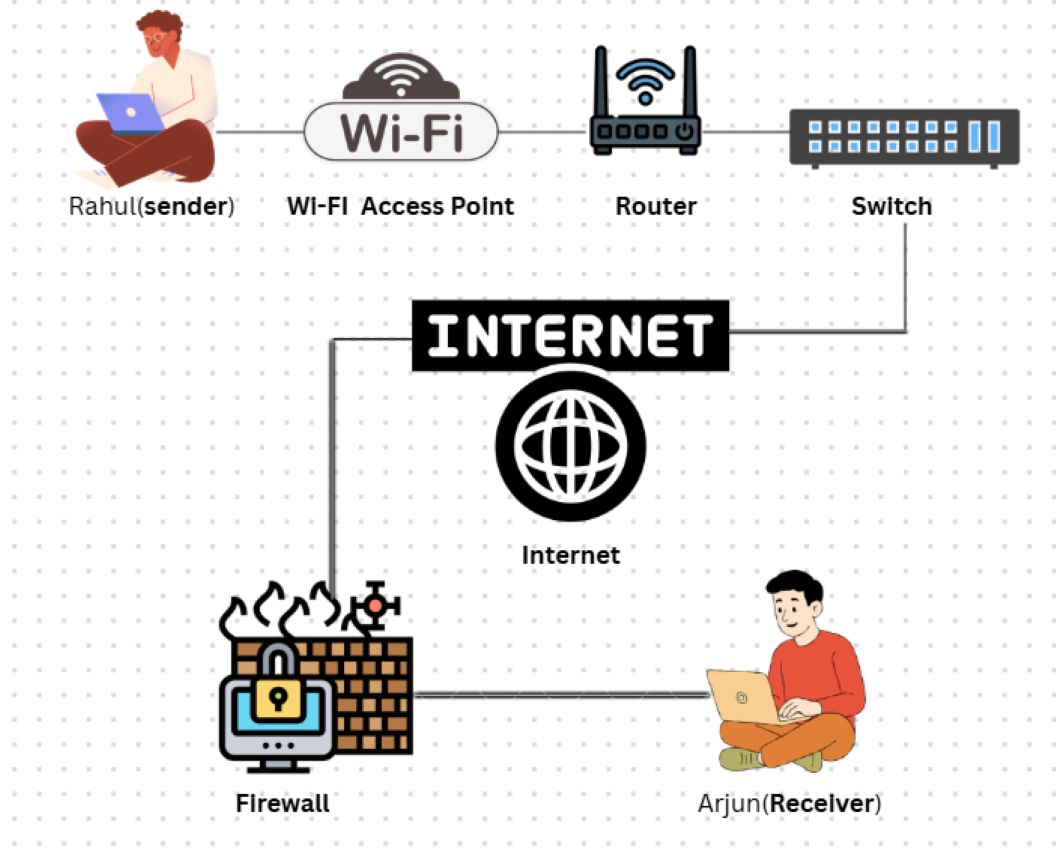
This diagram helps visualize how different components of a computer network work together in real-world scenarios.
To understand how the components we learned earlier are involved in networking, let’s look at a simple real-life story.
The Scenario
Rahul has completed his Operating Systems (OS) notes on his laptop. His friend Arjun is at home and urgently needs those notes to study for tomorrow’s exam. Rahul clicks “Send” on an email or WhatsApp.
What happens behind the scenes in the computer network?
1. The Starting Point (Sender & NIC)
Rahul is the sender. When he sends the file, his laptop’s Network Interface Card (NIC) converts the digital notes into signals that can travel through the network.
Think of it as:
Turning written notes into a language the network understands.
2. Moving Inside the Home Network (Access Point & Switch)
The signals travel wirelessly to Rahul’s Wi-Fi Access Point. Inside the home network, a switch ensures the data moves from Rahul’s laptop toward the correct exit point.
Think of it as:
Finding the correct door to leave the house.
3. Finding the Right Path (Router & Modem)
The data reaches Rahul’s router, which works like a traffic manager. It checks the destination IP address of Arjun’s computer.
The router forwards the data to the modem, which converts it into signals suitable for long-distance travel through fiber-optic cables.
Think of it as:
Handing the package to the city courier service.
4. Traveling Across the World (Internet / WAN)
Now the notes travel through the Internet (WAN). Along the way, the data may pass through multiple routers, gateways, and repeaters to maintain speed and signal strength.
Think of it as:
The package passing through many post offices across cities.
5. Staying Protected (Firewall)
Before entering Arjun’s network, the data passes through a firewall. This security guard checks whether the data is safe and blocks anything harmful.
Think of it as:
Security checking the package before delivery.
6. Final Delivery (Receiver & Reassembly)
Arjun is the receiver. His modem and router accept the data, and his laptop’s NIC receives the signals. Using TCP/IP, the packets are reassembled into the original file.
📩 Result:
Arjun sees a notification on his screen:
“OS_Notes_Final.pdf received.”
Advantages and Disadvantages of Computer Networks
While computer networks have transformed the way we communicate and work, they also come with certain challenges. Understanding both sides helps us use networks more effectively.
Advantages of Computer Networks (The Benefits)
1. Fast Communication
Computer networks enable instant communication through emails, messaging apps, and video calls.
One-line example:
You can send a file from India to the USA in seconds using the internet.
2. Resource Sharing
Networks allow multiple users to share hardware and software, reducing overall cost.
One-line example:
Ten employees can share one network printer instead of buying ten printers.
3. Centralized Data Management
Important data can be stored on a central server, making access, updates, and backups easier.
One-line example:
All employees access the same project file from a central office server.
4. Easy Scalability
Networks can be expanded easily by adding new devices without rebuilding the entire system.
One-line example:
A small office network grows from 2 computers to 50 by adding switches.
Disadvantages of Computer Networks (The Challenges)
1. Security Risks
Because devices are interconnected, viruses, malware, and hacking attacks can spread quickly.
One-line example:
A virus from one infected computer spreads to others on the same network.
2. Initial Setup Cost
Setting up a network may require expensive hardware and skilled professionals.
One-line example:
An office network needs routers, switches, cables, and servers before it can work.
3. Dependency on Network Availability
If a key device like a router or server fails, the entire network may stop working. This is called a Single Point of Failure.
One-line example:
When the office router fails, no one can access emails or shared files.
🧠 Beginner Safety Note
Computer networks offer huge benefits, but proper security, backups, and maintenance are essential to reduce risks.
Summary
A computer network connects multiple devices so they can share data, resources, and services efficiently. It forms the backbone of modern technology, enabling the internet, online communication, cloud platforms, and digital services we use every day.
For beginners, understanding computer networks is a foundational step. It prepares you for in-demand and high-paying fields such as Cloud Computing, Cybersecurity, and DevOps.
What’s Next?
Now that you know what a network is, the next step is learning the specific “languages” networks use to communicate — Network Protocols.
✅ Mastering the basics of computer networks makes learning advanced technologies faster, easier, and more meaningful.
Frequently Asked Questions (FAQs)
1. What is a computer network in simple words?
Ans: A computer network is a collection of two or more devices such as computers, phones, or printers that are connected together to share data and resources.
2. Where are computer networks used?
Ans: Computer networks are used everywhere, including home Wi-Fi, schools, offices, bank ATM systems, hospital databases, and the Internet.
3. Why are computer networks important?
Ans: Computer networks form the backbone of the digital world by enabling fast communication, file sharing, resource sharing, and online services.
Top 10 Lab Viva & Exam Questions (Computer Networks)
If you are preparing for a lab viva or computer science exam, these are the most important short-answer questions you should know.
Q1. What is the difference between a Hub and a Switch?
Ans: A hub is a dumb device that broadcasts data to all ports, while a switch is a smart device that sends data only to the intended device using MAC addresses.
Q2. What is a MAC Address and how is it different from an IP Address?
Ans: A MAC address is a permanent physical address assigned to a device’s NIC, whereas an IP address is a logical address that can change based on the network.
Q3. Which network covers a larger area: LAN or MAN?
Ans: MAN (Metropolitan Area Network) covers a larger area such as a city, while LAN (Local Area Network) is limited to a building or office.
Q4. What is the role of a Modem?
Ans: A modem converts digital data into signals suitable for transmission over ISP lines and vice versa, allowing internet access.
Q5. What is a Packet in networking?
Ans: A packet is a small unit of data into which a large message is divided for faster and reliable transmission.
Q6. What is a Protocol? Give two examples.
Ans: A protocol is a set of rules that governs data communication. Examples include HTTP and SMTP.
Q7. What is the Internet of Things (IoT)?
Ans: IoT refers to physical devices like smart bulbs, air conditioners, and refrigerators that are connected to the internet to collect and share data.
Q8. What is a Firewall?
Ans: A firewall is a security system that monitors and controls incoming and outgoing network traffic based on security rules.
Q9. What do you mean by Network Topology?
Ans: Network topology refers to the physical or logical layout of a network, such as star, bus, or mesh topology.
Q10. What is the function of a Repeater?
Ans: A repeater regenerates or boosts weak signals to extend the distance of network communication.