
I only understood one simple thing at first: an Operating System is the bridge between hardware and software. But when topics like processes, threads, kernels, and system calls appeared, they started to feel confusing and intimidating.
Everything changed when I began learning the concepts step by step instead of jumping between topics. Slowly, Operating Systems started making sense.
And if you’re a beginner who feels confused or intimidated by Operating Systems right now, remember this:
What you’re feeling is completely normal — almost every learner goes through this phase.
1. Introduction: Why Understanding Operating Systems Matters
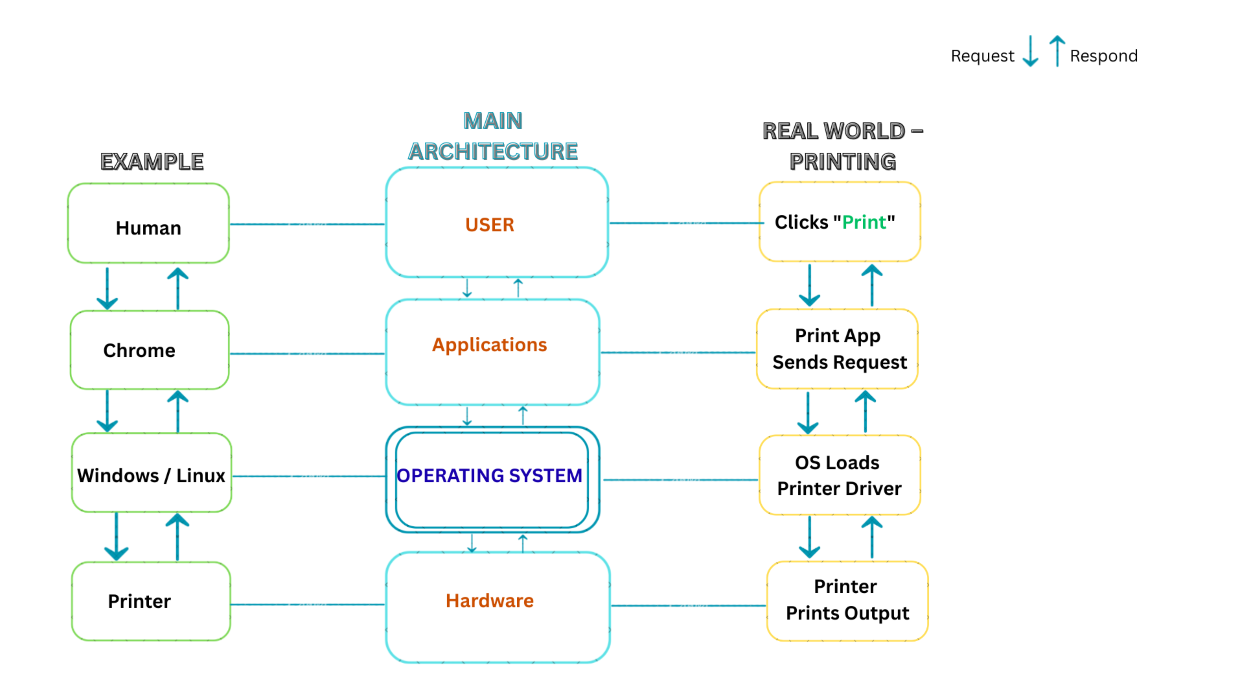
An Operating System (OS) is one of the most important concepts in computer science and software engineering. Whether you are learning programming, cybersecurity, cloud computing, DevOps, or data structures, everything runs on top of the operating system.
From managing CPU scheduling and memory management to handling file systems, device drivers, and multitasking, the operating system acts as the foundation of modern computing.
Every time you:
- Open a browser
- Install software
- Send an email
- Run an application
- Connect to the internet
Your operating system is working behind the scenes to manage hardware resources efficiently and securely.
In this complete beginner-friendly guide, you will learn:
- What an operating system is
- The core functions of an operating system
- Types of operating systems (including Real-Time OS)
- The difference between RAM and storage
- How the OS connects to data structures, networks, and databases
- Why understanding the kernel is essential
By the end of this article, you will not just memorize a definition — you will actually understand how an operating system works internally.
2. What Is an Operating System in Simple Words?
An Operating System is system software that acts as an interface between the computer hardware and the user.

Before modern Operating Systems existed, computers worked very differently. If you wanted to run a different program, you often had to manually reset the hardware or load instructions using punched cards. There was no concept of switching between applications. One mistake in a program could freeze the entire machine because there was no operating system to manage resources or recover from errors.
It manages:
- CPU (Processor)
- Memory (RAM)
- Storage (Hard Drive / SSD)
- Input & Output devices
- Application software
Without an operating system, your computer is just hardware with no direction.
3. The Best Real-World Example: The Restaurant Analogy
Imagine walking into a busy restaurant.
- You are the User.
- The Hardware = Kitchen, stove, chefs, ingredients.
- The Applications = Menu items (Pizza, Pasta, Salad).
- The Operating System = Restaurant Manager.
Now imagine there’s no manager.
- The waiter forgets orders.
- The chef cooks the wrong dish.
- The billing is confusing.
Chaos.
The manager coordinates everything so smoothly that you just enjoy your meal.
That’s exactly what an Operating System does inside your laptop or smartphone. It handles the complexity so you don’t even notice it.
4. A Small Real-Life Moment That Made It Click
I once opened too many apps on my old laptop — 15 Chrome tabs, music playing, coding software running, and a video streaming in the background.
Suddenly, everything froze. The cursor stopped moving. The system lagged badly.
At first, I blamed the laptop.
But later I understood — it wasn’t random.
The Operating System was struggling to manage memory and CPU resources.
That day, I truly understood what process management and memory management actually mean.
Sometimes learning happens when things break a little.
5. Core Functions of an Operating System (Must Know for Exams)
If you're preparing for computer science exams, lab tests, or viva, these are the most important functions of an operating system.

The operating system coordinates several critical functions to keep a computer running smoothly. It schedules processes so multiple programs can run efficiently, manages RAM to prevent memory conflicts, organizes files through the file system, and controls communication with hardware devices through I/O management. Together, these components allow applications and hardware to work in a stable and organized environment.
Exam Tip💡:If you're asked about the functions of an OS, don't just list them. Mention that the OS doesn't just "do" these things; it optimizes them. For example, it doesn't just manage memory; it prevents two apps from trying to use the same RAM at the same time.
Real-World Example: Printing a Document
To understand how different operating system components work together, imagine a simple action: printing a document.
- User clicks “Print”.
-
Process Manager
Creates and schedules the print process. -
Memory Manager
Allocates RAM for the print job. -
File System
Reads the document from disk storage. -
I/O Manager
Sends the data to the printer driver. -
Printer Hardware
Prints the final output.
Even a simple action like printing a document requires the OS to coordinate processes, memory, storage, and hardware devices.
5.1. Process Management (CPU Scheduling)
The CPU is the brain of the computer. But it can execute only one instruction at a time (very fast, but still one at a time).
The Operating System:
- Creates processes
- Schedules them
- Switches between them
- Terminates them
This is called CPU Scheduling.
Seeing Process Management in Real Life
Many beginners think process management is just a theoretical concept found in textbooks. But if you open your computer right now, you can actually see it working in real time.
Take a look at your Task Manager. Every application you open — such as a browser, music player, or code editor — becomes a running process. Even when you are not actively using them, many processes continue running quietly in the background to keep the system functioning smoothly.
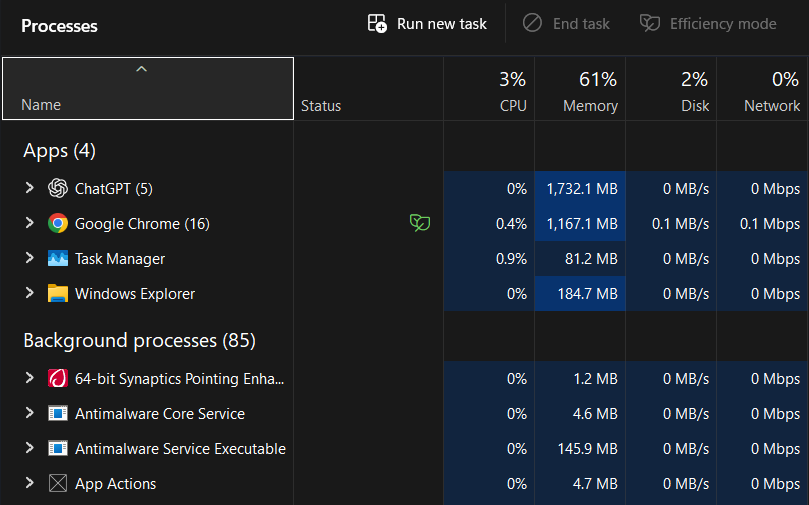
In the image above, you can see multiple applications running at the same time. But here’s the interesting part: your computer has only one CPU, and technically it can execute only one instruction at a time.
So how do all these programs appear to run simultaneously?
The answer is process management. The operating system rapidly switches the CPU between different processes in extremely small time slices. This technique is known as CPU scheduling, and it creates the illusion that many programs are running at the same time. This behavior is what we commonly call multitasking.
Try opening Task Manager on your own computer and observe how many processes are running — you may be surprised.
5.2. Memory Management (RAM Management)
When you open multiple applications such as:
- Browser
- Music player
- Code editor
Each one needs RAM.
The Operating System:
- Allocates memory
- Prevents data overlap
- Frees unused memory
If memory is poorly managed, the system slows down or crashes.
To see this in real life, open your Task Manager → Performance → Memory tab.
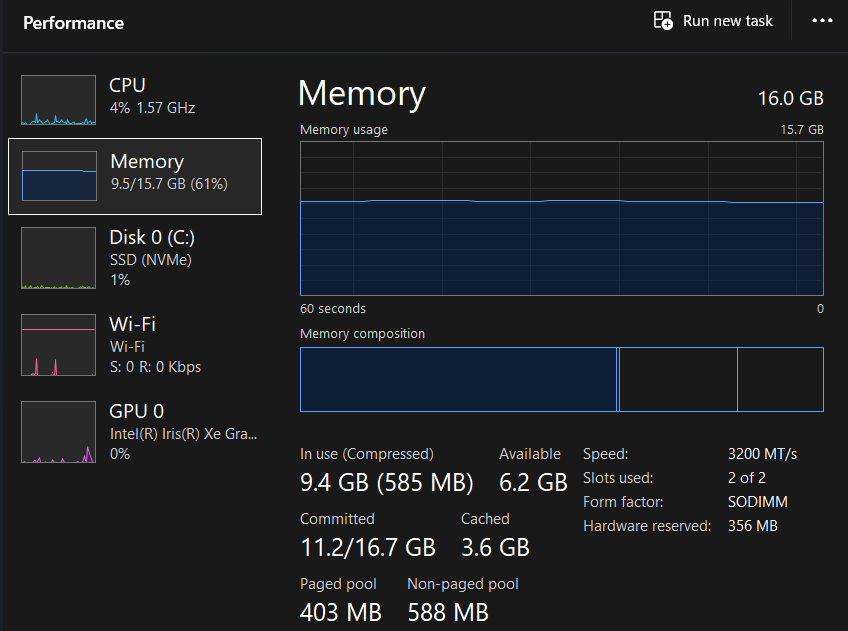
The image above shows how the Operating System manages RAM in real time. Each running application — such as a browser, music player, or code editor — receives a portion of memory allocated by the OS. As programs start or close, the OS continuously allocates, tracks, and frees RAM to keep the system stable and responsive.
If memory were not managed properly, applications could overwrite each other's data, causing slow performance, errors, or even system crashes.
This dynamic allocation of RAM ensures that multiple programs can run efficiently without interfering with each other’s memory space.
Most beginners confuse RAM with storage — but they are different. RAM is temporary working memory, while storage is permanent.
Table 1: RAM vs. Storage (The Memory Hierarchy)
This table addresses the most common confusion beginners have.
| Feature | RAM (Random Access Memory) | Storage (SSD / Hard Drive) |
|---|---|---|
| Technical Term | Volatile Memory | Non-Volatile Memory |
| Data Retention | Lost immediately when power is cut | Retained permanently until deleted |
| Speed | Ultra-High Speed (Nanoseconds) | Relatively Slower (Milliseconds) |
| OS Role | Used for Process Execution | Used for File Persistence |
| Analogy | Your Office Desk (Working Area) | Your Filing Cabinet (Storage Area) |
5.3. File System Management
Every file on your computer is stored in bits. But you don’t see bits — you see folders.
The Operating System:
- Organizes files
- Maintains directory structure
- Allows file searching
- Controls file permissions
Without a file system, finding your files would be nearly impossible.
To understand this better, just open File Explorer on your computer.
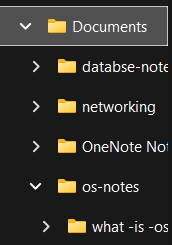
The image above shows how the Operating System organizes files using folders and directories. Instead of dealing with raw bits stored on a disk, the OS creates a structured system where files are grouped into folders, making them easier to find, access, and manage.
This structured organization is what we call the File System, and it allows your computer to store and retrieve data efficiently.
Without a file system, locating and managing files on a computer would be extremely difficult.
5.4. I/O Device Management
Your keyboard, mouse, printer, and monitor all send signals.
The Operating System uses device drivers to communicate with these hardware devices.
When you press a key:
- Signal is sent
- OS interprets it
- Action appears on screen
All within milliseconds.
6. 🛠️ The Technical Bridge: How the Operating System Connects Everything
One mistake beginners make is thinking the Operating System works alone.
It doesn’t.
In reality, the OS sits at the center of almost every major computer science concept — quietly connecting data structures, computer networks, database systems, and algorithms into one working system.
Let’s see how.
6.1. OS + Data Structures : The Manager’s Tools
An Operating System is powerful — but it doesn’t operate randomly. It relies heavily on data organization techniques to manage resources efficiently.
For example, when multiple applications compete for the CPU, the OS uses a Queue data structure to handle process scheduling. Applications stand in a waiting line, and each one gets its turn based on scheduling rules.
Behind the scenes, the OS performs resource allocation, keeps track of memory addresses, and organizes running processes using structured data models. Without proper data structures, multitasking would collapse into chaos.
I remember once wondering why my laptop slowed down even though “nothing big” was running. Later I realized dozens of small background processes were quietly waiting in the CPU queue. That was my first real glimpse of data structures working inside the OS.
Data Structures are not theory. They are the manager’s tools.
6.2. OS + Computer Networks : The Communicator
When you send an email or load a website, your browser doesn’t directly talk to the internet.
Your Operating System steps in.
It manages the network stack, handles communication protocols, and uses socket programming interfaces to move data between applications and network hardware.
Think of it like this:
- Your browser creates a data packet.
- The OS acts like a post office.
- It wraps the packet correctly.
- It follows communication rules.
- It hands it to the Network Interface Card to send over the internet.
This process uses system calls, device drivers, and APIs so that software can communicate with hardware safely and in a controlled way.
Have you ever thought about what really happens in that one second between clicking “Send” and your message appearing on the other side? That silent coordination is the OS at work.
6.3. OS + Database Management Systems : The Storage Vault
When a Database Management System (DBMS) saves a record, it doesn’t directly write data to the disk.
It requests permission from the Operating System.
The OS handles:
- File system operations
- Disk scheduling
- Storage allocation
- Concurrency control at the system level
In simple terms, it decides how and when data gets written safely to physical disk sectors.
When multiple users access a database simultaneously, the OS ensures data integrity by managing file access carefully.
The DBMS is powerful. But the OS is the gatekeeper.
6.4. OS + Algorithms : The Strategy Behind the Scenes
The Operating System doesn’t just manage resources — it makes decisions using algorithms.
Take the Round Robin scheduling algorithm, for example.
Instead of allowing one application to dominate the CPU, the OS divides processor time into equal slices. Each running app gets a fair share.
The OS constantly applies efficiency-focused strategies to balance performance, manage workload, and avoid dangerous states like deadlock.
Algorithms aren’t just textbook problems. They are the strategic engine behind every smooth user experience.
🔗 How This Builds the Bigger Picture
Now that you see the connections, the structure of computer science becomes clearer.
- The Operating System is the manager of one computer.
- Computer Networks are the roads connecting thousands of managers.
- Data Structures are the digital filing systems.
- Algorithms are the efficiency strategies.
- A DBMS is the specialized assistant for structured data storage.
Nothing works in isolation. Everything connects.
The Operating System sits at the center — providing hardware abstraction, multitasking, memory allocation, device driver management, and structured system calls.
When you understand this bridge, you stop studying subjects separately. You start seeing the system as a whole.
And that’s when real understanding begins.
7. Types of Operating Systems
Understanding the types of operating systems helps students avoid confusion. Each operating system type is designed for different environments and workloads.
- Single User OS
- Multi-User OS
- Batch Operating System
- Time-Sharing Operating System
- Real-Time Operating System (RTOS)
- Distributed Operating System
- Network Operating System
7.1. Table 2: Types of Operating Systems (OS Classification)
This classification covers the most common categories found in textbooks and viva exams.
| OS Type | How It Works (Core Logic) | Real-World Example |
|---|---|---|
| Batch OS | No direct interaction; jobs are grouped and processed together. | Payroll processing, Bank statements |
| Time-Sharing OS | Switches CPU rapidly between users so everyone feels full control. | Modern PCs (Windows, macOS) |
| Real-Time OS (RTOS) | Strictly time-bound; delay of even microseconds can cause failure. | ATMs, Air Traffic Control, Heart Monitors |
| Distributed OS | Manages multiple independent computers as a single system. | Cloud Computing (Google Search, AWS) |
| Network OS | Runs on servers to manage data, users, and security. | Windows Server, Novell NetWare |
7.2. Real-Time Operating System (RTOS) – The Time-Bound Engine
A Real-Time Operating System (RTOS) is not about fast processing — it is about guaranteed processing within a strict time limit.
Real-World Example: ATM Machine
When you request cash from an ATM, the operating system follows a strict sequence:
- Instant card read (High-priority task)
- PIN verification (Millisecond-level response)
- Secure database synchronization
- Cash dispensing (Hardware coordination)
If the OS delays even 5 seconds during cash dispensing, the transaction could fail. In an RTOS, a late response is equal to a wrong response.
The Gold Rule of RTOS:
"In a Real-Time System, correctness depends not only on the logical result but also on the time at which the result is produced."
7.3. Hard RTOS vs Soft RTOS
1. Hard RTOS: Zero Margin for Error
Missing a deadline means total system failure.
- Airbag Deployment Systems
- Anti-lock Braking Systems (ABS)
- Pacemakers
In Hard RTOS, the focus is on Worst-Case Execution Time (WCET).
2. Soft RTOS: Performance over Perfection
Deadlines are important but occasional delays are acceptable.
- Video Streaming Platforms
- Digital Cameras
- Online Gaming
Summary Table: Hard vs Soft RTOS
| Feature | Hard RTOS | Soft RTOS |
|---|---|---|
| Deadline | Absolute & Mandatory | Flexible |
| Failure Effect | Catastrophic | Performance Degradation |
| Determinism | 100% Predictable | Mostly Predictable |
| Complexity | High | Moderate |
8. Why Deadlines Matter (Exam Concept)
Standard Operating Systems focus on Throughput (how much work can be done).
Real-Time Operating Systems focus on Latency (how fast the system responds).
The key exam keyword to remember: Predictability.
9. Examples of Popular Operating Systems
You already use these daily:
For Computers
- Microsoft Windows
- macOS
- Linux
For Smartphones
- Android
- iOS
For Servers
- Ubuntu
- Red Hat Enterprise Linux
- Windows Server
10. Why Operating Systems Matter in Programming, Cybersecurity & DevOps
If you’re entering fields like:
- Programming
- Web Development
- Cybersecurity
- DevOps
- Cloud Computing
The Operating System is your foundation.
You will understand:
- Why applications crash
- What a memory leak is
- How multitasking works
- How the kernel interacts with hardware
11. What Is the Kernel? (Expanded Explanation)
The Kernel is the core part of the Operating System.
It directly interacts with hardware components such as the CPU, memory, and storage devices.
The kernel is responsible for:
- Process scheduling
- Memory management
- Device communication
- System security
Think of the kernel as the inner engine of the OS. While the user interacts with the graphical interface (GUI), the kernel works silently underneath, ensuring hardware and software communicate properly.
Without the kernel, the Operating System cannot function.
What Are System Calls? (The OS Request Form)
A System Call is the official, controlled way for an application (like Chrome or Spotify) to request services from the Kernel.
Think of it this way: You don’t walk into a bank vault and grab money yourself. You speak to the Teller (System Call), and they access the vault for you.
Why Do We Need System Calls?
Applications run in User Mode, where they are not allowed to access hardware directly. To perform critical operations, they must request the OS to temporarily switch control to Kernel Mode.
- Opening a File: The app asks the OS to locate the file on the SSD.
- Saving a Photo: The app requests the OS to write data to physical storage.
- Closing an Application: The app informs the OS to release allocated RAM.
The Verdict
System calls keep your computer secure and stable. Without them, a single buggy application could attempt to access memory it does not own, potentially crashing the entire system.
In the next Kernel Deep Dive article, we will explore how system calls switch between User Mode and Kernel Mode, and how this transition protects your system while maintaining performance.
12. Frequently Asked Questions (FAQs)
What is the main purpose of an Operating System?
The main purpose of an Operating System is to manage hardware resources and provide a platform for running applications.
Is Windows an Operating System?
Yes. Microsoft Windows is one of the most widely used operating systems.
What is the difference between OS and software?
An Operating System is system software that runs the computer. Other software (like browsers or games) runs on top of the OS.
What happens if there is no Operating System?
The computer cannot boot properly. You cannot run applications or interact with hardware.
Why do computers hang?
Mostly due to:
- High memory usage
- Too many processes
- Resource bottlenecks
The OS struggles to manage limited resources.
13. Common Confusions Students Have
Here are common beginner mistakes:
- Confusing RAM with Storage
- Thinking CPU runs multiple tasks physically at once
- Believing OS is only Windows
- Not understanding what the Kernel does
- Thinking OS and application software are the same
Clearing these concepts makes everything easier.
14. Lab & Viva Questions (Exam-Oriented)
Short Viva Questions
- What is an Operating System?
- Define CPU Scheduling.
- What is multitasking?
- What is a Kernel?
- What is the role of memory management?
- What is a device driver?
- Differentiate between RAM and ROM.
- What is process management?
Long Answer Questions
- Explain the functions of an Operating System with examples.
- Describe process management in detail.
- Explain memory management with diagram.
- What is file system management?
- Explain the types of Operating Systems.
15. One-Line Operating System Definition for Exams
An Operating System is system software that acts as an interface between the computer hardware and the user, managing hardware resources and providing a common environment for application software to run and controlling software execution.
Final Thoughts
The Operating System is not just software.
It is the invisible manager controlling everything behind the scenes.
You don’t see it. You don’t think about it. But without it, nothing works.
Now when your laptop slows down or your phone switches between apps smoothly, you’ll know what’s happening behind the curtain.
And that’s real understanding.
If you want to understand how computers communicate across the internet, read our guide on What Is a Computer Network .
16. What’s Next? The Kernel
Now that you understand what an Operating System does, it’s time to go one level deeper.
If the OS is the manager, then the Kernel is the core engine that directly interacts with hardware.
In the next article, we’ll explore:
- What the Kernel really does
- How it manages CPU and memory
- What system calls are
- The difference between Kernel and Shell
Understanding the Kernel means understanding how the OS truly works internally.
And that’s where real system knowledge begins.